Building a Claude Code-Centric Mac Dev Environment: tmux, Ghostty, and Discord Notifications
by 逆瀬川ちゃん
8 min read
Hi there! This is Sakasegawa-chan (@gyakuse)!
Today I want to walk through how I set up my Mac development environment around Claude Code. I'll cover the tmux layout, terminal configuration, and Discord notifications for when I'm away from the keyboard. I went through the whole thing end to end, so I'm going to write it all up.
What a Claude Code-optimized environment looks like
Once you start developing with Claude Code, the way you use your terminal changes quite a bit from the traditional workflow.
Traditional terminal work assumes "you type the commands." You open an editor, run build commands, run tests, and so on. With Claude Code, "Claude writes files and runs commands" becomes the primary activity, so your own work shifts toward giving instructions and approving actions.
That also changes what you want out of your environment:
- You want the Claude Code pane to be the biggest thing on screen
- You want server and frontend logs side-by-side so you can monitor them constantly
- You want a notification when Claude stops while you're away
- You want smooth switching between projects
This article walks through the environment I built to achieve all of these. All the config files are published in my dotfiles repository.
dev-tmux: a 4-pane fixed-layout project manager
Let's start with the biggest piece: dev-tmux. It's a tmux management script built around the concept of "one project = one window = four fixed panes."
Layout
┌───────────┬───────┬───────┐
│ 1: Claude │ 3:srv │ 4:fnt │
├───────────┤ │ │
│ 2: free │ │ │
└───────────┴───────┴───────┘
| Pane | Purpose | When it starts |
|---|---|---|
| 1 (top-left) | Claude Code | At session start |
| 2 (bottom-left) | git ops / free terminal | At session start |
| 3 (middle) | Server (npm run dev etc.) |
Launched with Option+R |
| 4 (right) | Frontend etc. | Launched with Option+R |
Here's what it actually looks like.
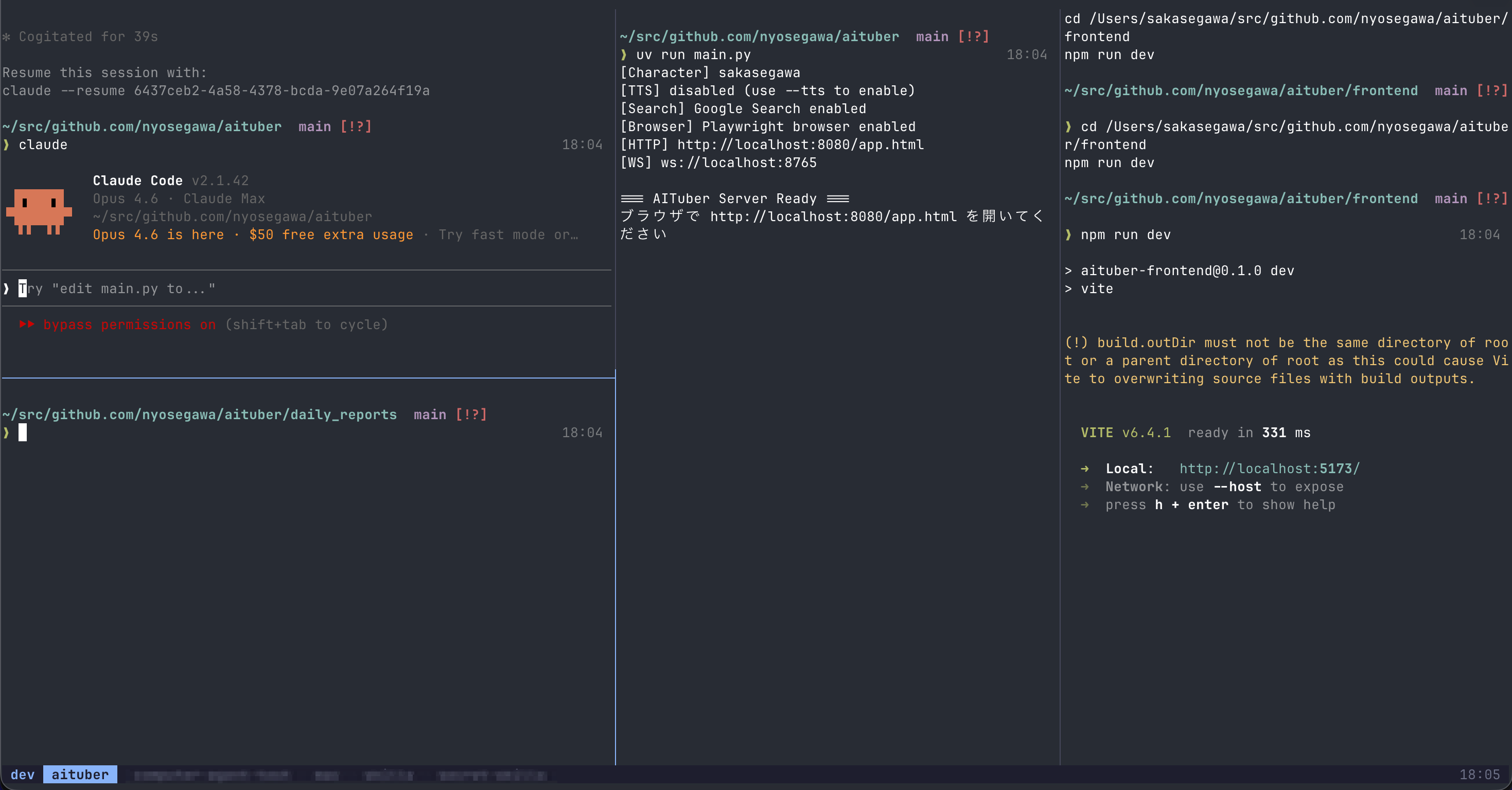
Pane 1 is the widest, and that's where Claude Code runs. Pane 2 in the bottom-left is for git operations and random one-off commands. Panes 3 and 4 on the right are where I keep long-running server processes and frontend dev servers visible at all times.
The nice part is that panes 3 and 4 can be "started/restarted with Option+R." After Claude Code updates dependencies, I just hit Option+R and the servers restart, so I never have to switch panes just to restart dev servers.
Project management
dev-tmux keeps a config file per project at ~/.config/dev-tmux/<name>.conf.
PROJECT_DIR="~/src/github.com/nyosegawa/aituber"
PANE1_CMD="" # empty = manual start (I launch Claude Code myself)
PANE2_CMD="" # empty = manual start
PANE3_DIR="" # sub-directory (empty = PROJECT_DIR)
PANE3_CMD="npm run dev" # command launched by Option+R
PANE4_DIR="frontend"
PANE4_CMD="npm run dev"
Leaving PANE1_CMD empty is deliberate. Every Claude Code session is in a different state: sometimes I want --resume to pick up where I left off, sometimes I want to start fresh. Not auto-starting is more flexible.
Registering a project is easy.
cd ~/src/github.com/nyosegawa/aituber
dev add # register under the current directory name
dev config # interactively set pane 3, 4 commands
dev # launch
Switching projects by switching windows
In dev-tmux, one project equals one window, so Shift+Left/Right moves between projects. tmux window switching doubles as project switching.
The status bar shows the project names in a row, so I can see at a glance which project I'm in.
dev aituber skills blog
The current project is highlighted.
Shortcut reference
Here are the shortcuts that work without a Prefix.
| Key | Action |
|---|---|
| Mouse click | Switch pane |
| Shift+Left/Right | Switch project |
| Option+C | Clear current pane |
| Option+D | Clear all panes |
| Option+R | Restart panes 3 and 4 |
| Option+S | Stop panes 3 and 4 |
I set the tmux Prefix to Ctrl+]. The default Ctrl+B clashes with Emacs keybindings, and Ctrl+A clashes with shell beginning-of-line. Ctrl+] barely collides with anything.
Ghostty + Starship: a noise-free terminal
Now, I mentioned dev-tmux's Option+ shortcuts, but those actually require some terminal-side setup to work.
Ghostty: optimized for macOS + tmux
My Ghostty config is just three lines.
macos-option-as-alt = true
copy-on-select = clipboard
shell-integration-features = ssh-terminfo,ssh-env
The most important one is macos-option-as-alt = true. macOS is designed so that pressing Option produces special characters (ç, ∂, etc.). Setting this to true makes Option act as Alt/Meta and send it to tmux. Without it, Option+C/D/R/S won't do anything.
copy-on-select = clipboard copies selected text to the clipboard just by highlighting it with the mouse. Super handy for copying Claude Code output over tmux.
shell-integration-features = ssh-terminfo,ssh-env auto-forwards terminfo to remote hosts over SSH. This prevents the Ghostty terminfo issue when I SSH into WSL.
Starship: a minimal 2-line prompt
When you use Claude Code, you type commands yourself less often, so I think the prompt only needs to show the bare minimum of information.
~/src/github.com/nyosegawa/aituber main ?1 14:30
❯
Line 1 has the full directory path, git branch, status, and the time at the far right. Line 2 is just the ❯ prompt character. Green on success, red on error.
I've disabled Node.js/Python version indicators, cloud provider badges, and command execution time. These all just get in the way mixed with Claude Code's output.
[nodejs]
disabled = true
[python]
disabled = true
[cmd_duration]
disabled = true
I do keep the full directory path visible. Repositories managed by ghq follow the ~/src/github.com/owner/repo structure, so the full path tells me which project I'm in immediately.
Claude Code Hooks → Discord notifications
That covers the "working" environment. Next comes the "away from keyboard" problem.
I often give Claude Code a longer task and step away. Grab a coffee, do something else. And it's annoying not knowing whether Claude has finished responding or is waiting for a permission check.
Claude Code has a system called Hooks that runs shell commands at specific points in the agent lifecycle. I used this to send notifications to a Discord webhook.
How Hooks work
Hooks are defined in ~/.claude/settings.json. When an event fires, Claude Code runs your shell command with a JSON context passed over stdin.
We're using two events here.
| Event | When it fires |
|---|---|
| Stop | When Claude finishes replying |
| Notification | On permission prompts or idle state |
Both events share a common set of fields in the JSON on stdin.
| Field | Content |
|---|---|
session_id |
Session ID |
transcript_path |
JSONL path of the conversation log |
cwd |
Working directory |
permission_mode |
Permission mode |
hook_event_name |
Event name |
Stop events additionally carry stop_hook_active (a flag to prevent infinite loops), while Notification events include notification_type and message.
settings.json configuration
{
"env": {
"CLAUDE_DISCORD_WEBHOOK_URL": "https://discord.com/api/webhooks/..."
},
"hooks": {
"Stop": [
{
"hooks": [
{
"type": "command",
"command": "python3 $HOME/.claude/hooks/discord-notify.py",
"async": true
}
]
}
],
"Notification": [
{
"matcher": "",
"hooks": [
{
"type": "command",
"command": "python3 $HOME/.claude/hooks/discord-notify.py",
"async": true
}
]
}
]
}
}
The key part is async: true. Sending notifications doesn't need to block Claude Code's operation, so I have them run in the background.
The webhook URL is declared as an environment variable in env. The script reads CLAUDE_DISCORD_WEBHOOK_URL, which centralizes URL management inside settings.json.
The notification script
I started in bash, but parsing the transcript JSONL was painful, so I rewrote it in Python. Here's the full ~/.claude/hooks/discord-notify.py. It runs with only the standard library.
#!/usr/bin/env python3
"""Claude Code → Discord notification via webhook."""
import json
import os
import sys
import urllib.request
WEBHOOK_URL = os.environ.get("CLAUDE_DISCORD_WEBHOOK_URL", "")
if not WEBHOOK_URL:
sys.exit(0)
data = json.load(sys.stdin)
event = data.get("hook_event_name", "Unknown")
cwd = data.get("cwd", "")
session_id = data.get("session_id", "")[:8]
title = ""
message = ""
color = 5814783
def extract_from_transcript(path: str, role: str, limit: int = 200) -> str:
"""Extract the last message with the given role from transcript_path."""
if not path or not os.path.isfile(path):
return ""
with open(path, "r") as f:
lines = f.readlines()
for line in reversed(lines):
try:
entry = json.loads(line)
except json.JSONDecodeError:
continue
if entry.get("type") != role:
continue
content = entry.get("message", {}).get("content", "")
# content may be a string or a list of blocks
if isinstance(content, str):
text = content
elif isinstance(content, list):
texts = []
for c in content:
if isinstance(c, str):
texts.append(c)
elif isinstance(c, dict) and c.get("type") == "text" and c.get("text"):
texts.append(c["text"])
text = texts[0] if texts else ""
else:
continue
if text:
if len(text) > limit:
return text[:limit] + "..."
return text
return ""
# --- Stop: reply completed ---
if event == "Stop":
if data.get("stop_hook_active"):
sys.exit(0)
title = "✅ 返信完了"
color = 3066993 # green
transcript = data.get("transcript_path", "")
user_msg = extract_from_transcript(transcript, "user", 100)
assistant_msg = extract_from_transcript(transcript, "assistant", 300)
parts = []
if user_msg:
parts.append(f"> {user_msg}")
if assistant_msg:
parts.append(assistant_msg)
message = "\n\n".join(parts) if parts else "Claudeの返信が完了しました。"
# --- Notification: permission / idle ---
elif event == "Notification":
ntype = data.get("notification_type", "unknown")
nmsg = data.get("message", "")
if ntype == "permission_prompt":
title = "⚠️ 確認待ち"
color = 15105570 # orange
message = nmsg or "権限の確認が必要です。"
elif ntype == "idle_prompt":
title = "💤 入力待ち"
color = 9807270 # gray
message = nmsg or "Claudeが入力を待っています。"
else:
title = "🔔 通知"
color = 3447003 # blue
message = nmsg or "通知があります。"
if not title:
sys.exit(0)
# Show cwd and session ID in the footer
footer_parts = []
if cwd:
footer_parts.append(f"📁 {cwd}")
if session_id:
footer_parts.append(f"🔑 {session_id}")
footer = " | ".join(footer_parts)
# Send to Discord Webhook
payload = json.dumps({
"embeds": [{
"title": title,
"description": message,
"color": color,
**({"footer": {"text": footer}} if footer else {}),
}]
}).encode()
req = urllib.request.Request(
WEBHOOK_URL,
data=payload,
headers={
"Content-Type": "application/json",
"User-Agent": "Claude-Code-Hook/1.0",
},
method="POST",
)
try:
urllib.request.urlopen(req, timeout=10)
except Exception:
pass
A few points worth explaining.
Showing my prompt and Claude's reply together
The Stop event's transcript_path points at the JSONL file with the conversation log. I read this file in reverse and pull out the most recent user message (type: "user") and the assistant reply (type: "assistant").
The Discord notification ends up looking like this.
✅ 返信完了
> 1+1は?
2です。
📁 /Users/sakasegawa | 🔑 74eb9211
My instruction shows up as a Discord quote block (>), followed by Claude's reply. One glance at the notification tells me "what I asked" and "what came back," even while I'm away.
Here's the actual Discord notification.
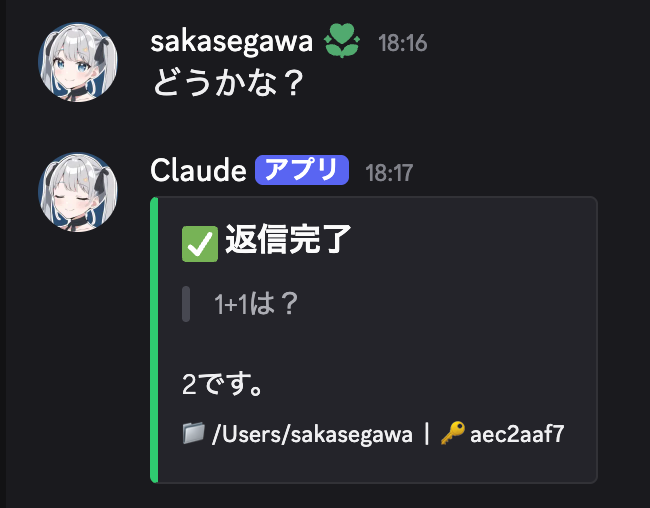
The transcript's JSONL format has a small gotcha. User message content is a plain string, but assistant message content is an array of blocks. Handling this difference in Python is way easier than in bash.
Color-coding by event type
Discord embeds have a color field, so I use a different color per event type.
| Event | Color | Meaning |
|---|---|---|
| Reply completed | Green (3066993) | Please take a look |
| Awaiting approval | Orange (15105570) | Needs immediate attention |
| Awaiting input | Gray (9807270) | Waiting for your next instruction |
When I glance at my phone's notification, the color alone tells me whether to hurry back or whether it can wait.
Identifying project and session in the footer
I sometimes run Claude Code across multiple projects in parallel, so the footer shows the working directory and session ID.
📁 /Users/sakasegawa/src/github.com/nyosegawa/aituber | 🔑 eb5b0174
The User-Agent header trap
Python's urllib.request defaults to sending User-Agent: Python-urllib/3.x. The Discord Webhook API rejects this User-Agent with a 403, so you need to set a custom one. This doesn't happen with curl in bash, so watch out when migrating to Python.
Preventing infinite loops
The Stop event has a subtle pitfall. When the Stop hook script finishes, it can itself trigger another Stop event. If stop_hook_active is true, the script exits immediately to prevent an infinite loop.
Wrap-up
- dev-tmux pins a 4-pane layout dedicated to Claude Code and switches projects at the window level. It's published in my dotfiles repository
- Ghostty's
macos-option-as-alt = trueand Starship's minimal prompt give me a Claude Code-centric terminal environment - Discord webhook notifications via Claude Code Hooks let me stay on top of Claude's state even when I'm away from the keyboard
References
- nyosegawa/dotfiles - tmux, Ghostty, and Starship config files from this article
- Hooks reference - Claude Code Docs - Official Claude Code Hooks reference
- Automate workflows with hooks - Claude Code Docs - Hooks guide
- Ghostty - The Ghostty terminal
- Starship - The Starship prompt
- Discord Webhook API - Discord Webhook